
Audio & monitoring
Set up master and headphone outputs, then balance your levels.
Open Mixless → Preferences… with Cmd+, and choose Audio I/O.
Output devices
Select a master output, sample rate (up to 96 kHz), and buffer size. Apply audio reopens the streams, briefly interrupting playback. An unavailable device or unsupported format reports an error and retains the previous configuration.
A smaller buffer reduces latency but leaves less time to process audio. If playback breaks up, increase the buffer and check the device's supported settings.
Headphone cue
Select a separate headphone output for PFL. The pre-fader headphone bus is independent of channel faders and master volume, including when the two devices use different sample rates. Headphone volume has its own control.
Without a headphone output, PFL is disabled. Hot cues remain available: hot cues move playback, while PFL monitors a channel.
Gain and level
| Control | Purpose |
|---|---|
| Mixer TRIM | Calibrate the channel's level |
| Deck GAIN | Drive that deck's limiter, from −12 to +12 dB |
| Channel fader | Set the level after deck limiting |
| Master GAIN | Drive the master limiter |
| Master LEVEL | Set final output volume after limiting |
| Headphone volume | Set independent headphone output level |
PFL monitors the limited deck signal before its channel fader. Master GAIN and LEVEL do not change headphone volume.
AutoMix may temporarily add up to 6 dB when a sustained overlap loses energy. AUTO +… shows the compensation. Your manual gain change takes control, and the temporary offset returns to zero after the mix.
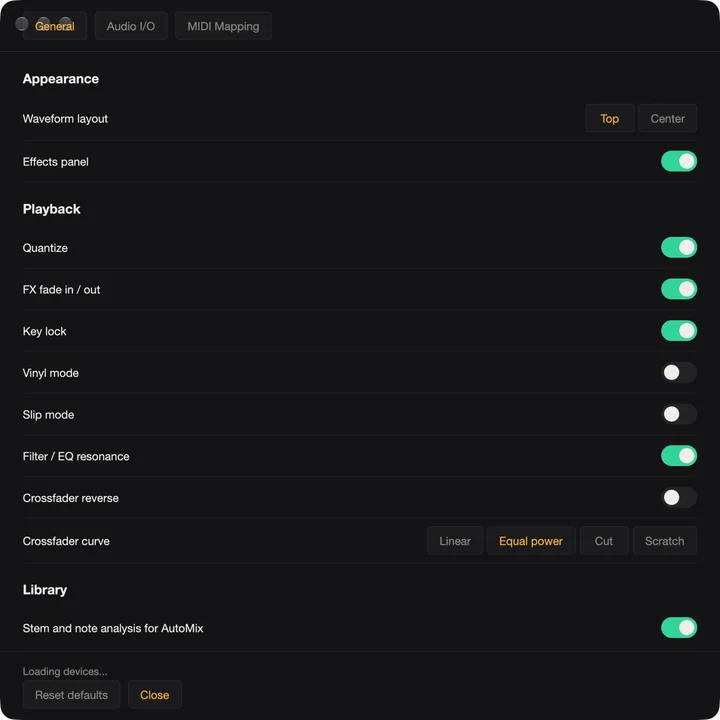
General preferences
General saves waveform layout, effects visibility, quantize, Key Lock, vinyl/slip, crossfader curve/reverse, and filter/EQ resonance. Changes also apply to the current session.
Microphone and Line In capture are not implemented. For controller setup, continue to MIDI mapping.